


Asterisk Troubleshooting Guide: Fix Common VoIP Issues

Asterisk Troubleshooting— A Complete Guide

Summary

  • Asterisk issues rarely start with a complete outage. They often begin with a failed registration, a SIP error code, missing audio, or a routing problem that gradually impacts service.
  • The blog explores the most common Asterisk troubleshooting scenarios, including SIP trunk failures, one-way audio, FreePBX connectivity issues, and upgrade-related problems. Read on to learn the commands, debugging techniques, and diagnostic checks that help identify root causes faster and resolve issues more effectively.

Yesterday, you fixed it by restarting Asterisk. The day before, by rebooting the SIP trunk. Last week, by clearing a registration cache nobody had ever told you existed.

Each fix worked. But none of them explained why the problem happened???

Now the same issue is back, and “have you tried restarting it?” feels less like troubleshooting and more like a routine response.

There’s a difference between making a problem disappear and understanding what caused it. This guide focuses on the second approach.

Instead of relying on trial-and-error fixes, you’ll learn how Asterisk Development teams identify root causes, analyze SIP errors, and resolve issues more efficiently.

Let’s look at the problems first. 

What are the Most Common Asterisk Problems?
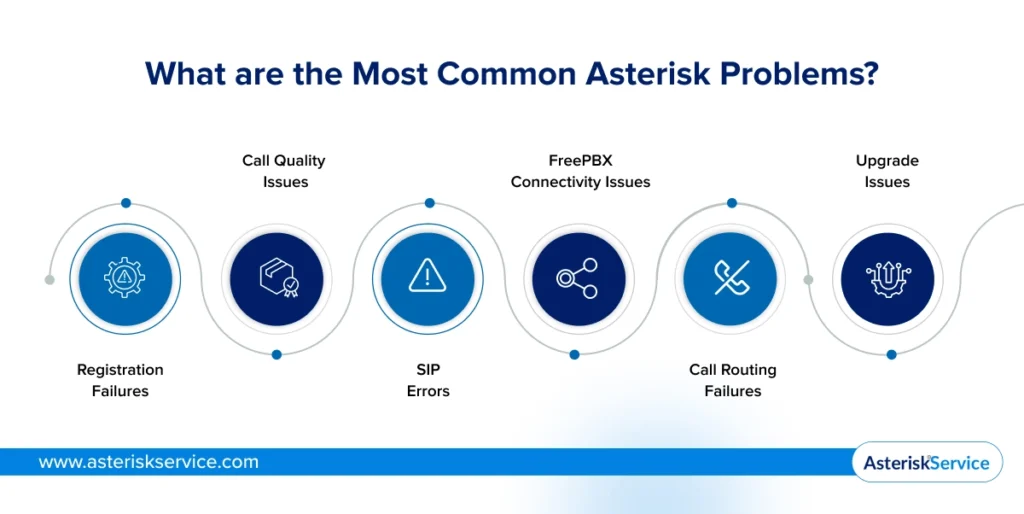
Most Common Asterisk Problems

The most common Asterisk problems include registration failures, call quality issues, SIP errors, FreePBX connectivity problems, call routing failures, and issues that appear after upgrades. Identifying the category first makes troubleshooting faster and more accurate.

1. Registration Failures

Registration failures occur when extensions or SIP trunks cannot connect to Asterisk successfully. Users may be unable to place or receive calls as a result. Since reliable trunk connectivity is essential for optimizing costs with Asterisk and SIP trunking, these issues should be addressed quickly. Common causes include incorrect credentials, firewall rules, network restrictions, and provider-side configuration problems. 

2. Call Quality Issues

Call quality problems affect the audio experience during a conversation. Users may notice one-way audio, echo, jitter, choppy speech, or unexpected call drops. In most cases, the root cause involves network performance, NAT configuration, RTP handling, or codec mismatches.

3. SIP Errors

SIP response codes provide valuable clues during Asterisk troubleshooting. Errors such as SIP 401 Unauthorized, SIP 408 Request Timeout, SIP 480 Temporarily Unavailable, and SIP 503 Service Unavailable often indicate authentication, connectivity, routing, or service availability issues. Understanding these codes can significantly reduce troubleshooting time.

4. FreePBX Connectivity Issues

FreePBX depends on a healthy connection with the Asterisk service. When communication fails, administrators may see messages such as “Cannot Connect to Asterisk” and lose access to key management functions. Service failures, permission issues, socket problems, or AMI connectivity errors are common causes.

5. Call Routing Failures

Call routing failures prevent calls from reaching the intended destination. Inbound calls may fail to reach extensions, while outbound calls may never leave the system. These issues are often traced to routing rules, dial plan errors, trunk configuration problems, or incorrect number formats.

6. Upgrade Issues

Many failures in Asterisk upgrades can be traced to legacy configurations that are no longer fully compatible. Version changes, deprecated modules, and migration requirements frequently impact registrations, routing, and system behavior. 

The next step is learning which commands and checks help identify these problems quickly and accurately.

What are the Most Important Asterisk CLI Commands for Troubleshooting?

The most important Asterisk CLI commands help you verify service status, check registrations, inspect active calls, and review system activity. These commands are often the fastest way to identify the source of an Asterisk issue before making configuration changes.

1. Core Commands

Core commands provide visibility into the overall health of the system. They help confirm whether Asterisk is running, how many calls are active, and whether channels are functioning as expected.

Command Purpose
asterisk -rvvv Access the Asterisk CLI with increased verbosity
core show channels Display active channels and calls
core show calls Show the total number of active calls
core show uptime Check how long Asterisk has been running

2. PJSIP Commands

Since chan_sip was removed in Asterisk 21, PJSIP is the standard channel driver in Asterisk 22 and 23. These commands help troubleshoot endpoint registrations, SIP trunks, and connectivity issues.

Command Purpose
pjsip show endpoints Display endpoint status
pjsip show registrations Check SIP trunk registrations
pjsip show contacts View registered devices and contact details
pjsip show aors Review address-of-record information

3. Logging Commands

Logs provide detailed information about system events and failed operations. They are especially useful when registrations, calls, or routing processes do not behave as expected.

Command Purpose
core set verbose 5 Increase console output detail
core set debug 5 Enable debugging information
logger reload Reload logger configuration
logger show channels Display active logging channels

4. Command Mapping

Many administrators still search for older chan_sip commands when troubleshooting. The following table shows their PJSIP equivalents.

chan_sip Command PJSIP Command
sip show peers pjsip show endpoints
sip show registry pjsip show registrations
sip show peer pjsip show endpoint
sip set debug on pjsip set logger on

These commands should be your first stop when troubleshooting Asterisk. 

They provide the information needed to investigate registration failures, SIP trunk issues, call routing problems, and audio-related errors.

How to Fix SIP Trunk Registration Problems in Asterisk?

To troubleshoot SIP trunk registration problems in Asterisk, verify registration status, authentication settings, network access, DNS resolution, and timeout issues. These checks are also essential when configuring Asterisk for high availability, where registration stability is critical. 

1. Registration Status

Start by checking whether the SIP trunk is registered. 

A trunk that shows as unregistered cannot send or receive calls. 

Use pjsip show registrations to view the current registration status and identify any reported errors.

2. Authentication Settings

Incorrect credentials are one of the most common causes of registration failures. 

Verify the username, password, authentication ID, and domain details provided by your SIP carrier. 

Even a small mismatch can prevent successful registration.

3. Network Access

Network restrictions can block communication between Asterisk and the SIP provider. 

Review firewall rules and confirm that SIP and RTP traffic are allowed. 

If the provider’s server cannot reach your system, registration attempts may fail.

4. DNS Resolution

Asterisk must be able to resolve the SIP provider’s hostname correctly.

DNS issues can prevent the system from locating the registration server.

Confirm that the configured domain resolves to the correct IP address and remains reachable.

5. Timeout Issues

Registration timeouts usually indicate connectivity problems between Asterisk and the provider.

High latency, packet loss, firewall restrictions, or unreachable servers can interrupt the registration process.

Review logs and registration responses to identify where the request is failing.

If the trunk still fails to register, enable SIP logging and examine the registration exchange. The response code often provides the clearest indication of the underlying problem.

How to Fix One-Way Audio and Dropped Calls in Asterisk?
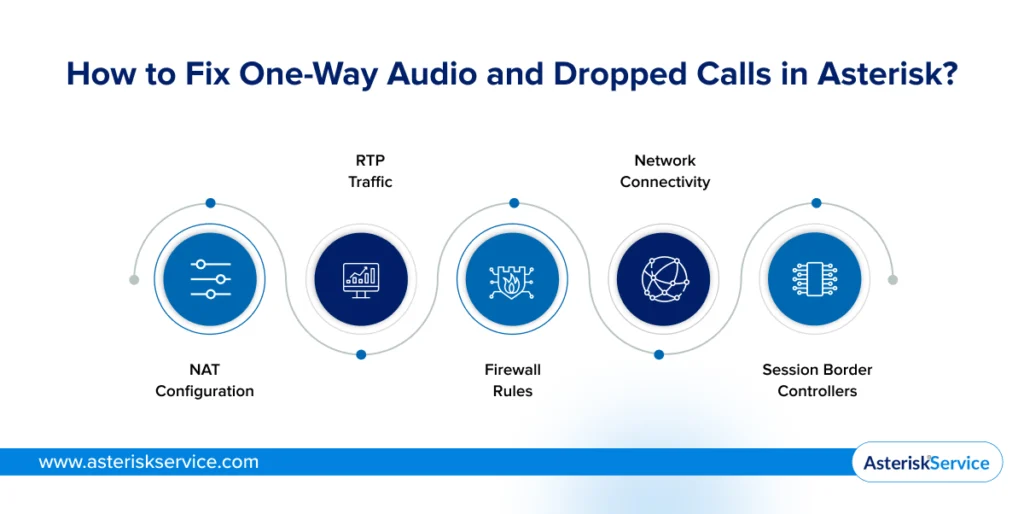
Fix One-Way Audio and Dropped Calls in Asterisk

To fix one-way audio and dropped calls in Asterisk, review NAT settings, RTP traffic, firewall rules, and network connectivity. These checks become even more important when deploying AI with Asterisk, where stable media flow is critical.

1. NAT Configuration

Incorrect NAT settings are a common cause of one-way audio.

The call may connect successfully while audio flows in only one direction.

Review external and local network settings to ensure media traffic follows the correct path.

2. RTP Traffic

RTP carries the audio stream during a call.

If RTP packets fail to reach one endpoint, users may experience missing audio or silent calls.

Verify that RTP traffic is being transmitted and received correctly.

3. Firewall Rules

Firewalls can block SIP signaling or RTP media traffic.

Calls may disconnect unexpectedly if required ports are restricted.

Confirm that the necessary ports are open between Asterisk, endpoints, and service providers.

4. Network Connectivity

Unstable network connections can affect call quality and reliability.

Packet loss, latency, and intermittent connectivity often lead to dropped calls and poor audio performance.

Check connectivity between all systems involved in the call path.

5. Session Border Controllers

A Session Border Controller (SBC) can help manage SIP traffic across network boundaries. It improves NAT traversal, stabilizes media routing, and reduces signaling issues that contribute to audio problems. In addition, an SBC protects SIP vulnerabilities, helping secure communications while improving call reliability in complex deployments.

If one-way audio or dropped calls persist, enable SIP and RTP debugging to identify where signaling or media flow breaks down.

What Do SIP Response Codes Mean in Asterisk?

SIP response codes indicate why a SIP request succeeded, failed, or could not be completed. In Asterisk troubleshooting, these codes help identify authentication issues, connectivity problems, routing errors, and service availability concerns.

1. Authentication Errors

Authentication-related codes usually appear during registration or call setup.

401 Unauthorized indicates that authentication is required. Verify usernames, passwords, and authentication settings.

403 Forbidden means the request was understood but rejected. This often points to invalid credentials, IP restrictions, or provider-side policies.

2. Availability Errors

These codes indicate that the destination cannot be reached or is currently unavailable.

404 Not Found means the requested user, extension, or resource does not exist.

480 Temporarily Unavailable indicates that the destination is known but cannot accept calls at the moment.

3. Timeout and Session Errors

These errors occur when requests do not complete successfully.

408 Request Timeout usually indicates that no response was received from the destination or service provider.

481 Call/Transaction Does Not Exist means Asterisk received a request for a session that is no longer active or cannot be identified.

4. Call Handling Errors

These codes are returned when a call cannot proceed for operational reasons.

486 Busy Here indicates that the destination is currently busy.

488 Not Acceptable Here usually points to incompatible codecs, media settings, or session parameters.

5. Service Errors

Service-related codes often originate from upstream systems or SIP providers.

503 Service Unavailable indicates that the destination server is temporarily unable to process the request.

603 Decline means the destination explicitly rejected the call.

SIP Code Common Cause
401 Unauthorized Invalid or missing authentication credentials
403 Forbidden Access denied by the provider or server
404 Not Found Invalid extension, user, or destination
408 Request Timeout No response received from the destination
480 Temporarily Unavailable Endpoint is unavailable or offline
481 Call/Transaction Does Not Exist Session or dialog mismatch
486 Busy Here Destination is currently busy
488 Not Acceptable Here Codec or media negotiation issue
503 Service Unavailable Service or server is temporarily unavailable
603 Decline Call was rejected by the destination

As the evolution of Asterisk telephony continues, SIP response codes remain one of the fastest ways to identify and resolve underlying issues. 

How to Debug SIP, RTP, and Asterisk Logs?

To debug SIP, RTP, and Asterisk logs, enable SIP and RTP tracing, review system logs, and analyze error messages during failed registrations or calls. These tools help identify where signaling, media, or configuration issues occur.

1. SIP Debugging

SIP debugging shows the messages exchanged between Asterisk and endpoints or service providers.

Enable SIP tracing with:

pjsip set logger on

Review the SIP conversation for authentication failures, registration errors, and rejected calls.

Pay close attention to SIP response codes and failed requests.

2. RTP Debugging

RTP debugging helps verify whether audio packets are flowing correctly.

Enable RTP tracing with:

rtp set debug on

If calls connect but audio is missing, RTP logs can reveal where media traffic stops.

This is particularly useful when troubleshooting one-way audio issues.

3. Log Analysis

Asterisk logs record system activity, warnings, and errors.

The primary log files are typically located in the /var/log/asterisk/ directory.

Review log entries around the time the issue occurred rather than scanning the entire file.

4. Error Review

Error messages often point directly to the source of the problem.

Look for authentication failures, registration errors, unreachable destinations, and configuration warnings.

Repeated messages usually indicate an underlying issue that requires attention.

5. Event Filtering

Large log files can make troubleshooting difficult.

Focus on events related to the affected endpoint, trunk, extension, or call.

Filtering relevant entries helps isolate the root cause more quickly.

When SIP traces, RTP traffic, and log data are reviewed together, most Asterisk issues become significantly easier to diagnose and resolve.

How to Troubleshoot FreePBX Connectivity Issues?

To troubleshoot FreePBX connectivity issues, verify that Asterisk is running, check AMI access, inspect the Asterisk.ctl socket, and validate routing settings. These checks are especially important after migrating Asterisk from a legacy PBX, when connectivity issues can surface unexpectedly. 

1. Asterisk Service

The “Cannot Connect to Asterisk” error often appears when the Asterisk service is unavailable.

Confirm that Asterisk is running and responding to commands.

If the service has stopped unexpectedly, restart it and review the logs for errors.

2. AMI Access

FreePBX relies on the Asterisk Manager Interface (AMI) for communication.

Incorrect AMI credentials or configuration issues can prevent FreePBX from connecting.

Verify that the AMI service is active and the configured credentials are correct.

3. asterisk.ctl Socket

The asterisk.ctl socket allows FreePBX to communicate with Asterisk locally.

Missing files, incorrect ownership, or permission issues can break this connection.

Check that the socket exists and is accessible by the required services.

4. Extension Registration

Unregistered extensions can indicate broader connectivity or configuration issues.

Review endpoint registration status and confirm that devices can reach the server.

Authentication errors and network restrictions are common causes.

5. Route Validation

Incorrect routing rules can make connectivity issues appear worse than they are.

Verify inbound routes, outbound routes, and destination settings.

A routing error may prevent calls from completing even when the connection is healthy.

If the issue persists, review Asterisk logs and AMI-related messages. They often provide the clearest indication of why FreePBX cannot connect to Asterisk.

But if the problem started after an upgrade, the root cause may lie in version-related changes.

How to Fix Common Asterisk Upgrade Problems? 

After an Asterisk upgrade, verify version compatibility, review PJSIP settings, validate dial plans, and check module status. Most issues stem from configuration changes rather than the upgrade itself. 

1. Version Compatibility

Before troubleshooting, confirm that all components support the upgraded version.

Older integrations, modules, and third-party applications may not work as expected after an upgrade.

Review compatibility requirements for connected systems and providers.

2. PJSIP Configuration

Asterisk 22 and 23 use PJSIP as the standard SIP channel driver.

Systems that previously relied on chan_sip may experience registration or calling issues after migration.

Verify that endpoints, trunks, and authentication settings are configured correctly.

3. Dial Plan Validation

Dial plans should be reviewed after every major upgrade.

Changes in configuration syntax or application behavior can affect call routing.

Test inbound and outbound calling to confirm that the routing logic still works as intended.

4. Module Status

Missing or disabled modules can cause unexpected service disruptions.

Review the loaded modules and confirm that the required functionality is available.

Pay particular attention to modules that support calling, routing, and endpoint registration.

5. System Monitoring

Closely monitor the system during the first few days after the upgrade.

Watch for registration failures, SIP errors, dropped calls, and unusual log activity.

Early monitoring helps identify issues before they affect users.

A successful upgrade is not just about completing the installation. It also requires validating that registrations, routing, and call processing continue to operate as expected.

From SIP errors to upgrade issues, the troubleshooting path is now clearer.

The Bottom Line?

Most Asterisk problems leave a trail before they become outages. A failed registration, an unexpected SIP response code, or a routing issue often points directly to the root cause. The key is knowing where to look and following a structured troubleshooting process instead of relying on temporary fixes.

Whether you’re dealing with SIP trunk failures, one-way audio, FreePBX connectivity issues, or post-upgrade complications, the right commands, logs, and diagnostics can significantly reduce troubleshooting time and prevent recurring problems.

If a persistent issue requires deeper investigation, the experts at Asterisk Service can help identify and resolve complex Asterisk challenges before they affect your operations.

FAQs

How do I troubleshoot SIP trunk registration failures in Asterisk?

Start by checking the registration status using PJSIP commands. Then verify authentication details, DNS resolution, firewall rules, and network connectivity. SIP response codes often provide additional clues about the underlying issue.

Why is my SIP trunk not registering in Asterisk?

A SIP trunk may fail to register because of incorrect credentials, provider restrictions, DNS issues, or blocked network ports. Reviewing registration logs and SIP responses can help identify the exact cause.

How do I fix one-way audio in Asterisk?

One-way audio is commonly caused by NAT configuration issues, blocked RTP traffic, or firewall restrictions. Verify RTP flow, review network settings, and ensure media ports are accessible between endpoints.

What does SIP 408 Request Timeout mean in Asterisk?

SIP 408 Request Timeout indicates that no response was received from the destination within the expected time. This often points to connectivity problems, firewall restrictions, or an unavailable endpoint.

What does SIP 503 Service Unavailable mean in Asterisk?

SIP 503 Service Unavailable means the destination server cannot process the request at that time. The issue may be caused by provider outages, server overload, configuration problems, or service restrictions.

Connect With Us!

    ×