


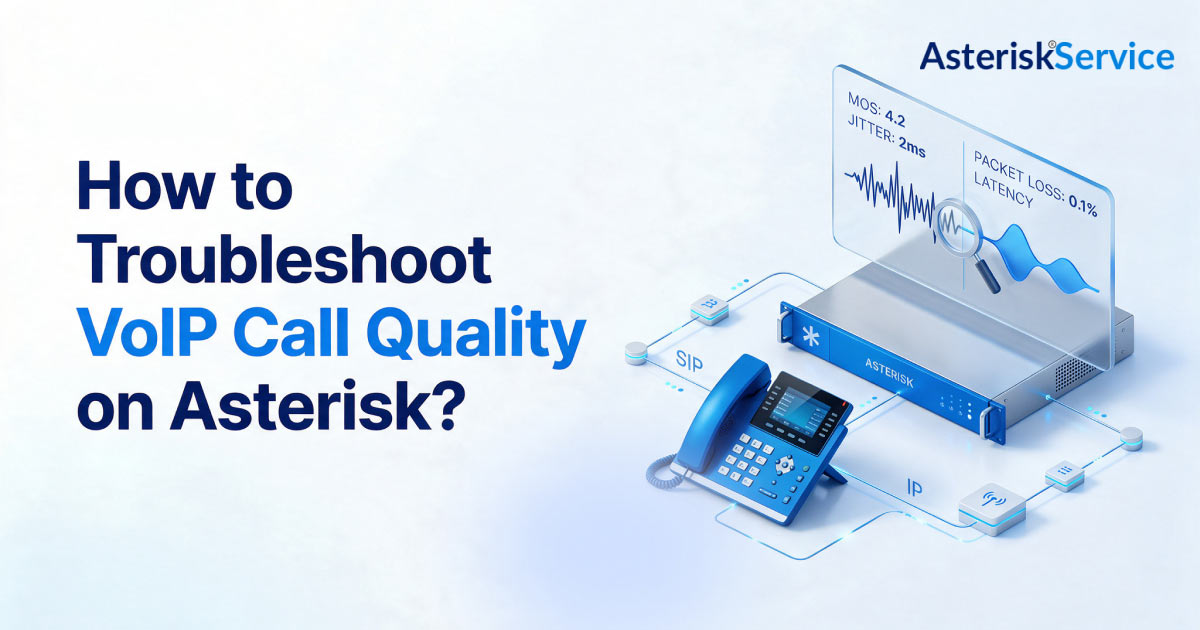
Diagnosing and fixing VoIP call quality on Asterisk comes down to isolating four points of failure: network transmission metrics (latency, jitter, packet loss), router-level SIP ALG interference, mismatched codec negotiation, and misconfigured jitter buffers.
When calls start clipping, dropping syllables, or breaking into robotic distortion, the knee-jerk reaction is to blame the internet service provider. In reality, real-time RTP voice traffic is uniquely unforgiving. Unlike web traffic, there is no TCP retransmission. A dropped voice packet is lost permanently.
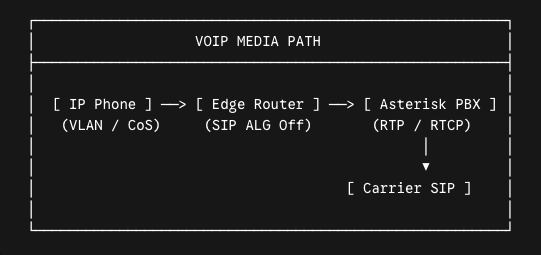
Whether you run an on-premises Asterisk PBX, a FreePBX appliance, or a distributed cloud telephony stack, fixing poor audio requires disciplined diagnostic steps. Here is how you can test, diagnose, and resolve VoIP issues across every hop of your communication chain.
What Is a VoIP Call Quality Test and How Do You Run One?
A VoIP call quality test is a diagnostic procedure that measures network throughput, packet delivery integrity, and latency consistency under both idle and peak network loads. This helps to verify that an internet connection meets real-time voice requirements.
To understand test results, you must evaluate the core transmission metrics that govern the human listening experience:
Key VoIP Call Quality Test Metrics to Check
- Bandwidth: Voice requires roughly 85 to 100 kbps of dedicated, symmetrical upload and download bandwidth per concurrent call for standard uncompressed codecs (G.711), or 30 to 40 kbps for compressed codecs (G.729).
- Latency (One-Way Delay): The time it takes for a voice packet to travel from the speaker’s mouth to the listener’s ear. One-way latency must remain under 150 ms to maintain natural conversational pacing; delays exceeding 250 ms cause callers to talk over one another.
- Jitter: The variation in packet arrival times. Jitter must stay under 20 to 30 ms. Variations exceeding 40 to 50 ms overwhelm the receiving hardware’s jitter buffer, causing packets to be discarded as late arrivals.
- Packet Loss: The percentage of voice packets dropped in transit. Packet loss must remain under 1%, and ideally at 0%. Losses above 2% cause noticeable syllable clipping, while loss exceeding 5% renders calls unintelligible.
- Mean Opinion Score (MOS): An industry-standard numerical rating from 1.0 (unusable) to 5.0 (crystal clear). Business-grade VoIP requires a MOS of 4.0 or higher; scores below 3.6 generate immediate user complaints.
Steps to Run a VoIP Call Quality Test
- Establish an Ethernet Baseline: Disconnect from Wi-Fi and plug a test machine directly into the voice VLAN or core switch using a Cat6 Ethernet cable. Wi-Fi introduces radio frequency interference, half-duplex contention, and roaming handoff delays that skew network baseline metrics. Run an initial test using dedicated diagnostic tools (such as the Aircall Network Checker, RingCentral QoS Tool, or Visualware MyConnection Server) to record your clean baseline.
- Simulate Peak Network Hours: Run tests during peak business operations when employees are actively streaming video, syncing cloud backups, and downloading files. A network that delivers a 4.3 MOS at 7:00 AM can easily drop to 3.2 MOS at 2:00 PM if data traffic saturates the upload pipe.
- Simulate Concurrent Call Loads: Configure your diagnostic utility to simulate the maximum number of simultaneous calls your office handles (e.g., 10, 25, or 50 concurrent RTP streams). Verify whether the router preserves low jitter and zero packet loss as local throughput scales.
- Inspect Asterisk and Carrier Statistics: Review Asterisk RTCP reports and carrier Call Detail Records (CDRs). If local speed tests report pristine conditions but Asterisk logs reflect dropped RTP packets on external SIP trunks, the degradation sits on the ISP route or carrier interconnect rather than your local office switch.
VoIP Call Quality Thresholds (What the Numbers Mean)
The table below outlines the operational thresholds established by ITU-T recommendations and industry benchmarks, illustrating how network performance impacts user experience:
| Metric | Pristine (Excellent) | Acceptable (Business Grade) | Degraded (Action Required) | Unusable (Call Failure) |
| One-Way Latency | < 100 ms | 100 – 150 ms | 151 – 250 ms | > 300 ms |
| Round-Trip Time (RTT) | < 150 ms | 150 – 200 ms | 201 – 350 ms | > 400 ms |
| Jitter | < 10 ms | 10 – 25 ms | 26 – 45 ms | > 50 ms |
| Packet Loss | 0% | < 0.5% | 1% – 3% | > 5% |
| MOS Rating | 4.2 – 4.5 | 4.0 – 4.1 | 3.5 – 3.9 | < 3.0 |
The boundary between natural conversation and constant collision is codified in international standards. The ITU-T Recommendation G.114 (One-way transmission time) defines strict planning thresholds: one-way delay under 150 ms is acceptable for conversational speech, delay between 150 ms and 400 ms requires operational caution due to noticeable interruptions, and anything exceeding 400 ms is formally categorized as unacceptable for standard voice network planning.
When packet loss reaches just 2%, the receiver’s packet loss concealment (PLC) algorithm can no longer interpolate missing acoustic frames, resulting in audible clicks and missing phonemes. Similarly, when jitter fluctuates wildly, the jitter buffer must choose between dropping packets or introducing artificial delay, degrading the conversation either way.
Symptom-First VoIP Call Quality Troubleshooting (What Your Ears Are Telling You)
Before diving into packet captures, match the audible symptom described by your users to the underlying telephony or network fault:
| Audible Symptom | Probable Cause | Where to Look | Immediate Remedy |
| Choppy, Stuttering Audio | Jitter exceeding jitter buffer; burst packet loss | LAN congestion, Wi-Fi interference, ISP transit | Enable DSCP QoS; move endpoints to wired Ethernet; tune PBX jitter buffer |
| Robotic, Metallic Voice | Continuous CPU-bound transcoding or aggressive compression | PBX CPU spikes; forced G.729 transcoding | Match endpoint codecs to SIP trunk codecs (e.g., force G.711 or Opus end-to-end) |
| One-Way Audio | NAT traversal failure; asymmetric firewall rules | Asterisk pjsip.conf NAT settings; router ALG | Set external_media_address; disable SIP ALG; open bidirectional UDP port ranges |
| Audio Dropouts / Silence After 30s | Stale NAT binding or ACK timeout | Router stateful firewall UDP timeouts | Enable PJSIP qualify_frequency=30; adjust router UDP session timeout to 60+ seconds |
| Echo (Hearing Yourself Speak) | Acoustic reflection on far end or hybrid impedance mismatch | Analog FXS/FXO gateways; cheap speakerphones | Enable Asterisk software echo canceller (oslec); lower handset mic volume |
| Cross-Talk / Talking Over Each Other | High one-way latency (> 250 ms) | Bufferbloat on upload pipe; international satellite hops | Implement Smart Queue Management (SQM / FQ-CoDel) on router |
How to Troubleshoot VoIP on Asterisk PBX?
To troubleshoot VoIP on Asterisk, access the Asterisk CLI (rasterisk or asterisk -r) to inspect live RTP media streams, check RTCP quality reports, identify transcoding overhead, and verify SIP registration health.
Here are the essential commands every voice administrator must know:
1.Inspecting Live RTP Streams and Packet Counters
To observe real-time packet delivery and identify packet loss or jitter as a call is happening, enable RTP debugging:
Turn on RTP debugging for all streams:
CLI> rtp set debug onTarget a specific IP address to reduce console flood:
CLI> rtp set debug ip 192.168.1.150Turn off debugging once isolated:
CLI> rtp set debug off
When active, the CLI prints inbound and outbound packet metadata. Look specifically for missing sequence numbers (dropped packets) or sudden deviations in packet arrival intervals.
2.Reading End-of-Call RTCP Statistics
Asterisk calculates jitter and packet loss using RTCP (RTP Control Protocol) sender and receiver reports. Ensure RTCP logging is enabled in /etc/asterisk/rtp.conf:
[general]

rtcpstats=yes
< div style=”background-color: #f5f5f5; border: 1px solid #ddd; border-radius: 6px; padding: 16px; margin: 16px 0;”>
VERBOSE[12345] res_rtp_asterisk.c: Got RTCP report from 192.168.1.150:10002

VERBOSE[12345] res_rtp_asterisk.c: * Cumulative lost packets: 14

VERBOSE[12345] res_rtp_asterisk.c: * Fraction lost: 8 / 256 (3.1%)

VERBOSE[12345] res_rtp_asterisk.c: * Interarrival jitter: 184 (23ms)

VERBOSE[12345] res_rtp_asterisk.c: * Round trip time: 45ms
- Fraction lost: A score based on 256. A value of 0 means zero loss; a value above 8 indicates more than 3% packet loss requiring immediate network investigation.
- Interarrival jitter: Recorded in timestamp units. For G.711 (8kHz audio), divide the raw value by 8 to get the jitter in milliseconds (e.g., 184/8 = 23 ms).
3.Detecting Unnecessary Codec Transcoding
Converting audio between codecs on the fly consumes PBX CPU cycles and degrades voice fidelity. To see what codecs your active channels are running, use:
CLI> core show channels verboseExamine the Format and NativeFormats columns:
- If NativeFormats is (g722) and WriteFormat is (ulaw), Asterisk is actively transcoding every audio frame from HD Voice (G.722) down to standard definition (G.711u), introducing latency and potential clipping.
- Run core show translation to view the translation matrix and CPU cost associated with converting formats across your server.
4.Verifying SIP Signaling and Endpoint Health
For systems running chan_pjsip, verify that latency to your phones and carrier trunks remains stable:
CLI> pjsip show endpoints

CLI> pjsip show aors
Look at the RTT column. If an internal office phone shows round-trip times fluctuating between 15 ms and 180 ms, you have an unmanaged switch loop, bad cabling, or Wi-Fi contention on your local network.
For impeccable VoIP call quality, also read: What Asterisk Telephony System Providers Need to Upgrade
How to Fix SIP ALG, Firewalls, and NAT Traversal for Better VoIP Call Quality?
More than 60% of one-way audio, dropped calls, and registration timeouts stem from poor firewall configurations and faulty router helpers.
1.Disable SIP Application Layer Gateway (SIP ALG)
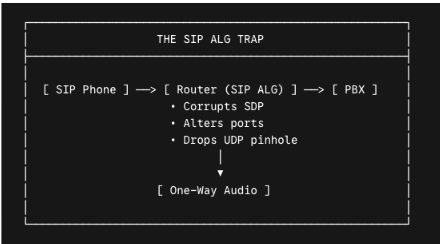
SIP ALG was originally designed to help commercial routers translate private IP addresses inside SIP headers before sending them across the public internet. In practice, modern VoIP protocols and endpoints handle their own NAT traversal (via STUN, TURN, and ICE).
SIP ALG implementations on commercial routers routinely corrupt packet headers:
- They rewrite SIP SDP packets with incorrect IP addresses or port numbers.
- They alter call signaling without modifying the corresponding RTP media stream.
- They drop keep-alive messages, leading to silent call drops after 30 seconds.
- The Fix: Log into your edge router or firewall and explicitly disable SIP ALG, SIP Helper, or SIP Inspection.
2.Configure PJSIP NAT Traversal
If your Asterisk server sits behind a NAT firewall (e.g., in AWS, Azure, or a private corporate subnet), you must tell Asterisk what its public IP address is so it advertises the correct media destination in its Session Description Protocol (SDP) payloads.
In /etc/asterisk/pjsip.conf, configure your transport:
[transport-udp]

type=transport

protocol=udp

bind=0.0.0.0:5060

local_net=192.168.1.0/24

local_net=10.0.0.0/16

external_media_address=203.0.113.25

external_signaling_address=203.0.113.25
If your public IP is dynamic, use external_media_address=myserver.dyndns.org to allow dynamic DNS resolution.
3.Open the Complete RTP Media Port Range
While SIP signaling operates over port 5060 (UDP/TCP) or 5061 (TLS), the actual audio travels over dynamic UDP ports. If your firewall blocks these ports, calls will connect, but neither party will hear audio.
Verify your port configuration in /etc/asterisk/rtp.conf:
[general]

rtpstart=10000

rtpend=20000
Ensure your perimeter firewall has a matching port forwarding rule allowing inbound UDP traffic across ports 10000 through 20000 directly to the internal IP of your Asterisk server.
Codec Comparison and Bandwidth Allocation
Choosing the right audio codec balances voice fidelity against available internet bandwidth. The table below outlines bandwidth consumption, including standard IP, UDP, and RTP protocol overhead (assuming 20 ms packetization intervals):
| Codec | Audio Quality (Max MOS) | Bitrate (Raw Audio) | Total Bandwidth Per Call (With IP/UDP Overhead) | Primary Use Case |
| G.711 (u-law / a-law) | 4.3 – 4.4 | 64 kbps | 87.2 kbps | Standard PSTN calling; legacy trunking |
| G.722 (HD Voice) | 4.4 – 4.5 | 64 kbps | 87.2 kbps | Internal corporate calls; modern SIP trunks |
| Opus (Adaptive) | 4.5 – 4.6 | 6 – 510 kbps (16-32 kbps typical) | 40 – 60 kbps | WebRTC, remote softphones, variable networks |
| G.729 / G.729a | 3.9 – 4.0 | 8 kbps | 31.2 kbps | Low-bandwidth remote sites; satellite links |
Sizing Your Internet Pipe for Voice
To calculate the bandwidth required for your office, multiply your expected peak concurrent calls by the total bandwidth per call, then add a 20% safety margin:

For example, an office supporting 20 simultaneous G.711 calls requires:

Crucially, this bandwidth must be symmetrical. Cable and residential broadband connections often feature high download speeds (e.g., 300 Mbps) but restricted upload speeds (e.g., 10 Mbps). If a large file upload saturates your 10 Mbps upstream link, outbound voice packets queue up, causing immediate outbound audio breakup.
Tuning Asterisk for Jitter Buffers and Media Routing
When network jitter cannot be completely eliminated over commodity internet connections, Asterisk’s built-in adaptive jitter buffer can absorb timing variations.
1.Enabling the Adaptive Jitter Buffer
Open /etc/asterisk/rtp.conf (or your endpoint definitions) and configure the jitter buffer:
[general]
jbenable=yes             ; Enable jitter buffer on channels
jbforce=no               ; Only enable when jitter is actually detected
jbmaxsize=200             ; Max buffer size in milliseconds (do not exceed 250-300ms)
jbresyncthreshold=1000    ; Resync threshold if packets arrive wildly out of order
jbimpl=adaptive ; Use adaptive buffer rather than fixed depth- How it works: The adaptive jitter buffer dynamically grows when network jitter spikes, holding packets briefly so they can be reassembled in chronological sequence before playback. When jitter subsides, it shrinks to minimize conversational delay.
- Caution: Never set jbmaxsize higher than 300 ms. A buffer that is too large eliminates packet loss at the expense of introducing massive acoustic delay, making natural conversations impossible
2.Disabling direct_media for NAT Environments
Asterisk supports direct_media (formerly canreinvite), which instructs two SIP endpoints to send RTP media packets directly to each other, bypassing Asterisk’s media engine.
While this saves server CPU, it breaks audio if one or both endpoints sit behind separate NAT firewalls:
In /etc/asterisk/pjsip.conf:

[my-endpoint]

type=endpoint
direct_media=no ; Force RTP audio to anchor through Asterisk
Setting direct_media=no forces all audio frames to traverse the PBX server, allowing Asterisk to normalize media paths and bridge NAT traversal cleanly.
💡 VoIP Expert Tip
Never assume your edge router knows which packets belong to voice calls.
Configure Asterisk to mark outgoing packets with Differentiated Services Code Point (DSCP) tags at the operating system socket layer.
- In /etc/asterisk/pjsip.conf, set tos_audio=ef (Expedited Forwarding / DSCP 46) and tos_signaling=cs3 (Class Selector 3 / DSCP 24).
- Configure your managed network switches and routers with strict priority queuing (LLQ) to place DSCP 46 packets at the head of every transmission queue (protecting voice from being starved by bulk data traffic).
5 Actionable Steps to Improve VoIP Call Quality on Asterisk Today
1.Migrate Critical Phones from Wi-Fi to Wired Cat6
Wi-Fi is a shared, half-duplex medium subject to microwave, Bluetooth, and co-channel interference. Hardwiring desktop phones to a dedicated switch port immediately eliminates sporadic jitter and packet loss.
2.Segment Voice into a Dedicated VLAN
Separate voice traffic from office PCs, printers, and guest devices by assigning IP phones to a dedicated Voice VLAN (e.g., VLAN 20). This isolates voice endpoints from broadcast storms and allows you to enforce Layer 2 802.1p CoS (Class of Service) priority tagging.
3.Turn Off SIP ALG and Open Static Port Forwards
Access your border firewall, locate the SIP ALG or SIP Helper toggle, and set it to disabled. Ensure outbound UDP ports 5060/5061 and the entire RTP media range (10000–20000) are routed cleanly.
4.Implement Smart Queue Management (SQM)
If your internet pipe experiences bufferbloat during heavy office downloads, deploy a router running modern active queue management (such as FQ-CoDel or CAKE). SQM prevents large downloads from monopolizing network buffers, guaranteeing voice packets immediate transit.
5.Standardize on a Single HD Codec
Prevent your Asterisk PBX from wasting CPU cycles on transcoding. Configure your internal phones and upstream SIP trunks to prefer the same codec (either G.711u for broad compatibility or G.722/Opus for HD voice fidelity).
Diagnosing intermittent audio degradation across complex PBX clusters, carrier interconnects, and multi-site enterprise networks requires specialized telephony engineering.
If your team is struggling with persistent packet loss, SIP registration drops, or carrier-level audio distortion, our senior engineers can step in. They can help design, harden, and optimize your high-throughput Asterisk platforms.
Ready to resolve your telephony issues permanently? Talk to a senior Asterisk VoIP engineer today!
1. What is the most common cause of poor VoIP call quality?
The most common cause of poor VoIP call quality is upstream local network congestion combined with an absence of Quality of Service (QoS) prioritization. When computers on the same network upload large files or stream video, unprioritized voice packets queue up behind data packets, causing immediate jitter, packet loss, and robotic audio.
2. How does jitter affect VoIP calls?
Jitter is the variance in time between when voice packets are sent and when they arrive. Because real-time audio requires packets to be played back in exact chronological sequence, high jitter forces the receiving phone's jitter buffer to discard late-arriving packets, causing words to sound clipped, choppy, or unintelligible.
3. What is a good MOS score for business VoIP?
A Mean Opinion Score (MOS) of 4.0 to 4.5 is considered high-quality, business-grade audio. When scores drop below 3.6, callers begin noticing audio distortion, latency, or clipping. Scores below 3.0 indicate severe network degradation that makes professional communication impossible.
4. Should you enable or disable SIP ALG on your router?
You should almost always disable SIP ALG (Application Layer Gateway). While originally created to assist with NAT traversal, commercial router implementations of SIP ALG frequently rewrite packet headers incorrectly, causing one-way audio, dropped call transfers, and phone registration timeouts.
5. How do you fix one-way audio on Asterisk?
One-way audio in Asterisk is almost always caused by NAT misconfiguration or firewall port blocking. To fix it, ensure your firewall forwards the full RTP port range (UDP 10000–20000) to Asterisk, configure external_media_address in your pjsip.conf transport with your public IP, and set direct_media=no to ensure audio routes through Asterisk rather than attempting peer-to-peer traversal.